
In the age of information overload, we all yearn for efficient ways to capture, review, and make sense of what we read. The Reading Knowledge Capture (RKC) system, a branch of personal knowledge management (PKM), is here to streamline this process. This guide will walk you through RKC’s clever structure, combining science with practicality, to help you retain and revisit valuable knowledge. Expect insights, a touch of wit, and a system that adapts to your unique style of learning.
The Problem with Traditional Highlight Systems
Most of us rely on Kindle or other reading platforms that capture highlights and notes. But here’s the issue: these systems often keep your insights locked within proprietary platforms, limiting where and how you can access them. Previous RKC versions automated highlight capture but required a Kindle, a computer, and a click to initiate the process. The current iteration removes these restrictions and introduces a more universal, flexible approach, accessible from virtually any reading device.
Enter the New RKC: Capture, Review, and Showcase
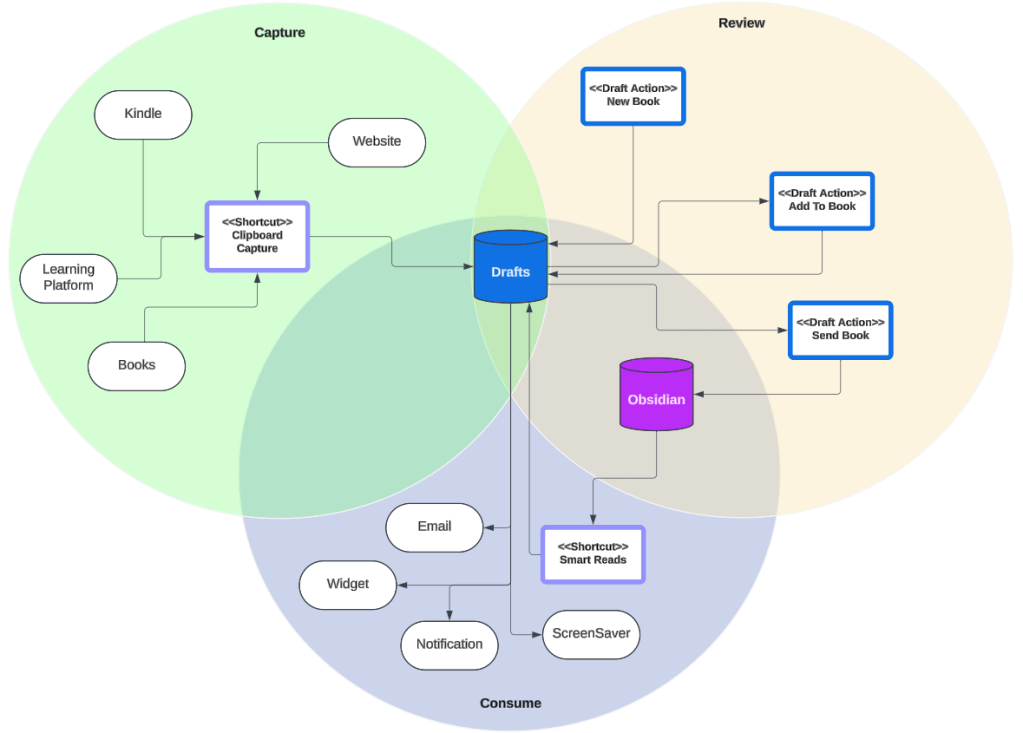
With this new version, the RKC process is divided into three main stages: Capture, Review, and Consume. Let’s dive into each stage.
Stage 1: Capture
The capture stage is all about simplicity and speed. Here’s how it works:
- Read Anywhere, Note Instantly: Whether on a Kindle, a web browser, or a mobile app, if you find something noteworthy, select the text, copy it, swipe down to the control center, and tap a shortcut button.
- Drafts Integration: The captured text goes straight to Drafts, an app where it can be tagged, organized, and filed for later review.
With this setup, every meaningful quote or passage is only a swipe and tap away from being stored in your knowledge bank. No need to open additional apps or worry about compatibility with different reading devices.
*It is worth noting that copy pasting books has a limit of (usually) 10% of the book. This is a publishing thing. So bear that in mind when copy pasting too many highlights.
Implementation Details
Shortcut
Clipboard Capture
- Get content of screen (This only helpful for websites)
- Get Content of clipboard
- Text with the content of the clipboard and the content of screen
- Create new draft with text
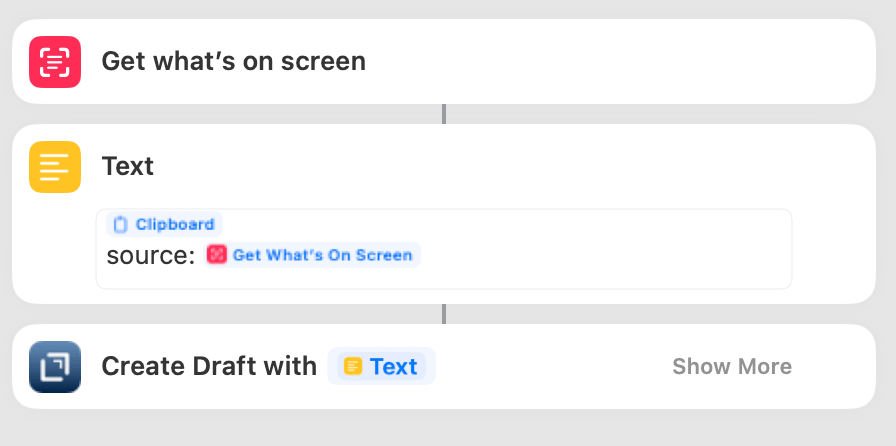
Hook this up on control center, every time you need to keep something, select, copy, swipe down, and run this shortcut.
Stage 2: Review
The review stage is where you transform raw snippets into lasting knowledge.
- Book Notebook: When starting a new book or line of research, create a notebook per book or topic. That’s ideal but you do you, the point of this is to have a landing area.
- Review and Reflect: Open Drafts, read through your saved clips, and reflect. Add comments, contextual thoughts, or even counterpoints to deepen your understanding.
- Organize by Book: Once satisfied, you simply select the “Add to Book” action. The script will append the draft’s contents to a designated “book” note, creating a cohesive record of highlights, reflections, and insights for each book.
At this stage, the content is tailored and categorized, moving from raw highlight to a refined summary. Once a book note is complete, it’s ready for final storage in Obsidian.
Implementation Details
Draft Actions
New Book
- Run Script
let p = Prompt.create();
p.addTextField("textFieldBook", "Book", "");
p.addTextField("textFieldAuthor", "Authors", "");
p.addButton("Done");
let didSelect = p.show();
let author = p.fieldValues["textFieldAuthor"];
let book = p.fieldValues["textFieldBook"];
if (p.buttonPressed == "Done") {
    draft.setTemplateTag("book_title", book)
    draft.setTemplateTag("author_names", author)
}
- Create Draft
Template:
# [[book_title]]
->authors: [[author_names]]
->started: [[time]]
->tags:
## Highlights
This will create a new draft with that template (custom for me). It also adds some custom tags im using to classify within my workspaces. Up to you.
Add To Book
- Run Script
function toISOLocal(d) {
  var z  = n =>  ('0' + n).slice(-2);
  var zz = n => ('00' + n).slice(-3);
  var off = d.getTimezoneOffset();
  var sign = off > 0? '-' : '+';
  off = Math.abs(off);
  return d.getFullYear() + '-'
         + z(d.getMonth()+1) + '-' +
         z(d.getDate()) + 'T' +
         z(d.getHours()) + ':'  +
         z(d.getMinutes()) + ':' +
         z(d.getSeconds()) + '.' +
         zz(d.getMilliseconds()) +
         sign + z(off/60|0) + ':' + z(off%60);
}
let f = () => {
    // select an existing draft
    let d = app.selectDraft(Workspace.find("Books"));
    if (!d) {
        return false;
    }
    // append current draft
    let datee = draft.createdAt;
    d.content = d.content + "\n---\n**"+ toISOLocal(datee) + "**\n" + draft.content + "\n";
    d.update();
    return true;
}
if (!f()) {
    context.cancel();
}
This will show a list of Drafts in the ‘Books’ workspace. (where I have my books). After selecting a draft from that list. it will append the content of the current draft to it and archive it.
Send Book
This is an action that runs a shortcut that saves the whole draft in the obsidian folder designated for books.
Stage 3: Consume
Here’s where the magic happens: making these insights constantly visible and accessible.
- The “Smart Reads” Shortcut: This shortcut scans your Obsidian library for book notes, randomly selects one, and pulls a random highlight. The chosen highlight then replaces the content of a dedicated “Quote” draft in Drafts.
- Widget Display: Using Drafts’ widget functionality, the “Quote” draft is displayed on your home screen. Each time the shortcut runs, a new quote appears, offering you a bite-sized reminder of your readings.
This setup creates a rotating feed of knowledge on your home screen, which you can configure to update automatically or manually.
Diagram Placeholder: [Widget Flow – Diagram showing the random selection and widget update process]
Note: Depending on widget update timing, there may be occasional lag in displaying the latest quote. However, the key here is consistency: regular exposure to captured insights helps solidify them in your memory.
Implementation Details
Shortcut
Smart Reads
- Get content of folder containing books.
- Get random number between 1 and the count of books in the folder.
- Get the book indexed at the random number
- Split the content of that file by — (Or whichever separator)
- Get a random number between 1 and the count of items after the split.
- From the Split content, get the item indexed at the random number.
- Get draft and update its content to whatever text from the previous step.
- Add to whichever frontend you want
This one is a bit convoluted and may vary depending on your implementation
RKC’s Capture-Review-Consume cycle offers an efficient, scientific approach to knowledge retention. With the clever use of iOS shortcuts, Drafts, and Obsidian, this system is adaptable, allowing you to scale or modify it based on your needs. The result is a simple yet powerful way to enrich your learning, keeping valuable insights accessible, organized, and ever-present.
This system could revolutionize your approach to reading and knowledge capture. Give it a try—and never let valuable knowledge fade into obscurity again.
 Webalab
Leave a comment